Final Image Preview
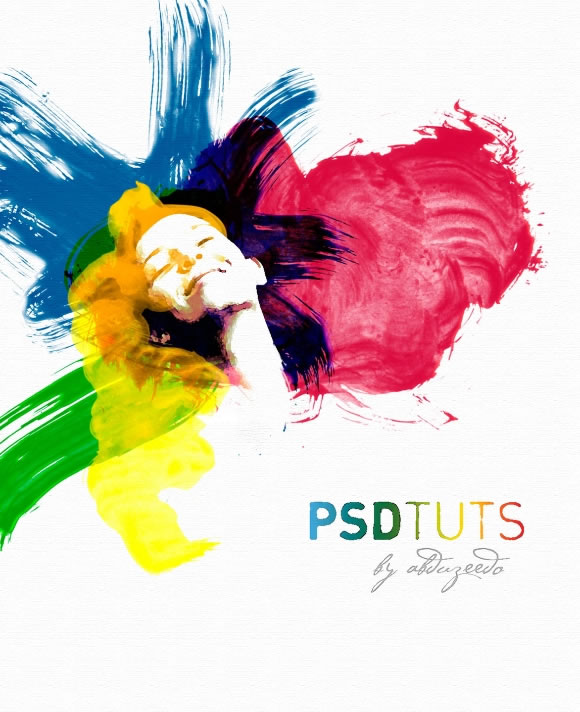
Before we get started, let’s take a look
at the image we’ll be creating. Click the screenshot below to view the
full-size image. As always, the full layered Photoshop file is available
Psdtuts+ Plus membership.
Step 1
Create
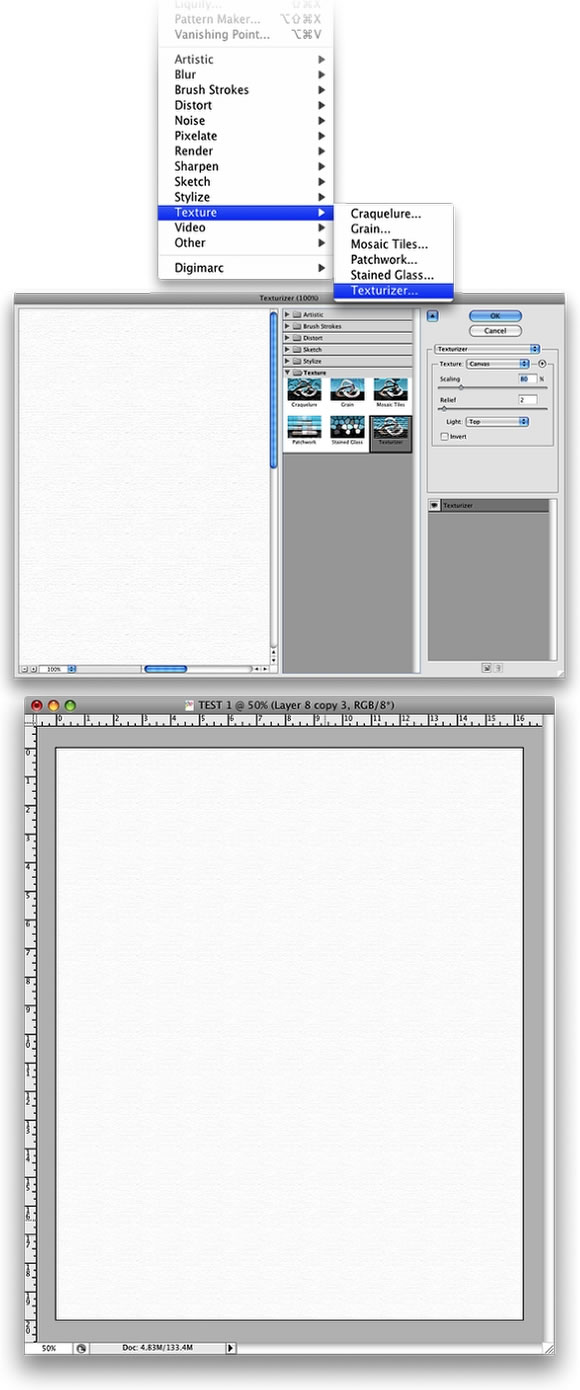
a new document and a new layer. Rename the layer to “texture” and fill
it with white. Make sure that the foreground is white and the background
is black. Then go to Filter>Texture>Texturizer, and use Canvas
for the Texture, 80% Scaling, and 2 for the Relief.
Step 2
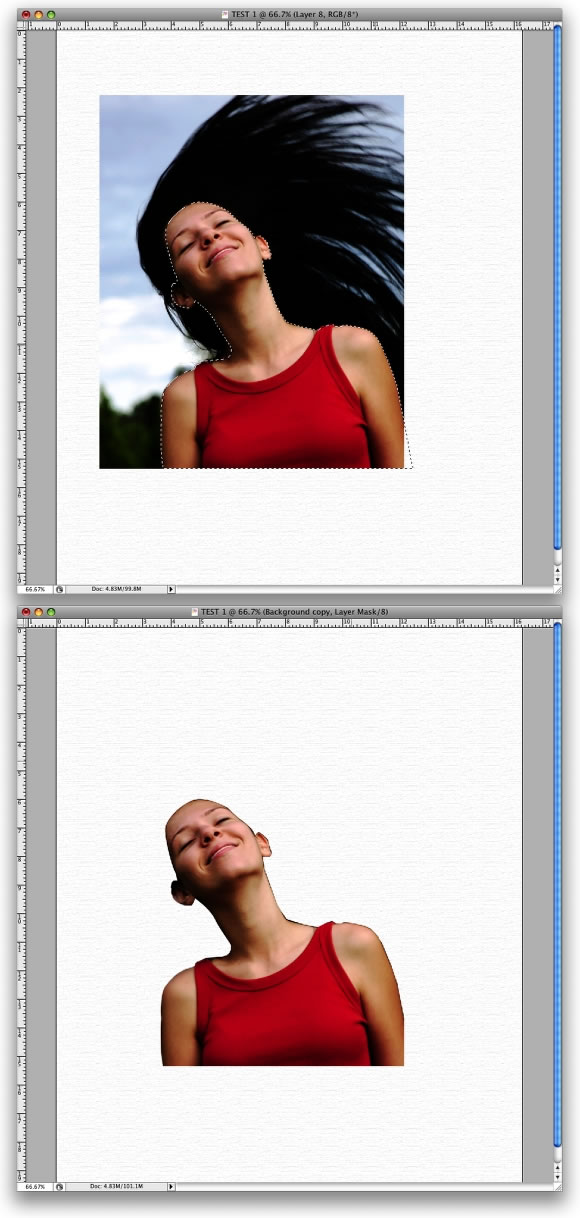
Place an image in your document. The one used in this tutorial can be downloaded at this
link. Then delete the background. You can use the Path Tool (P) or the Polygonal Lasso Tool (L).
Tip: It doesn’t need to be perfect because we will apply some filters in the next step.
Step 3
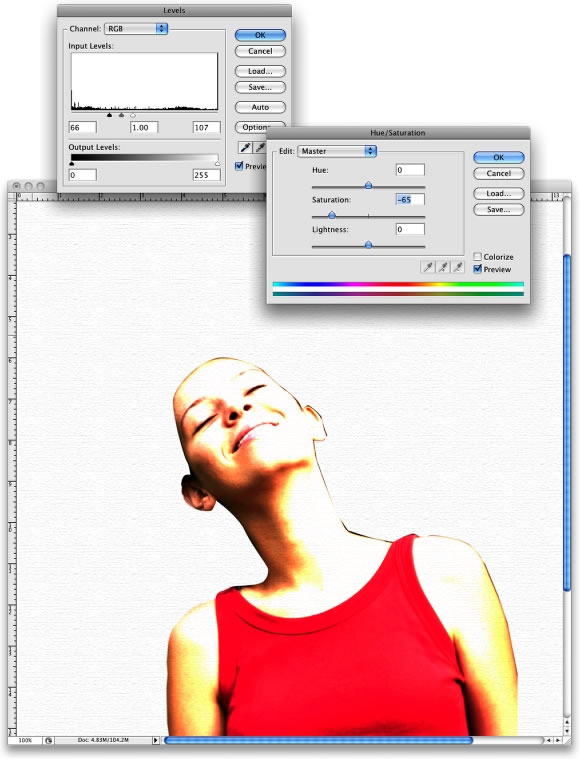
Select
the layer of the girl and go to Image>Adjustments>Levels. We want
to increase the whites here. Then go to
Image>Adjustments>Hue/Saturation, and change the Saturation to
-65.
Step 4
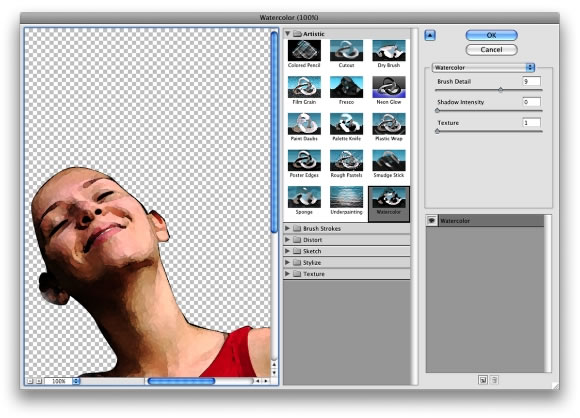
Now go to Filter>Artistic>Watercolor. Use the following settings: Brush Detail 9, Shadow Intensity 0, and Texture 1.
Step 5
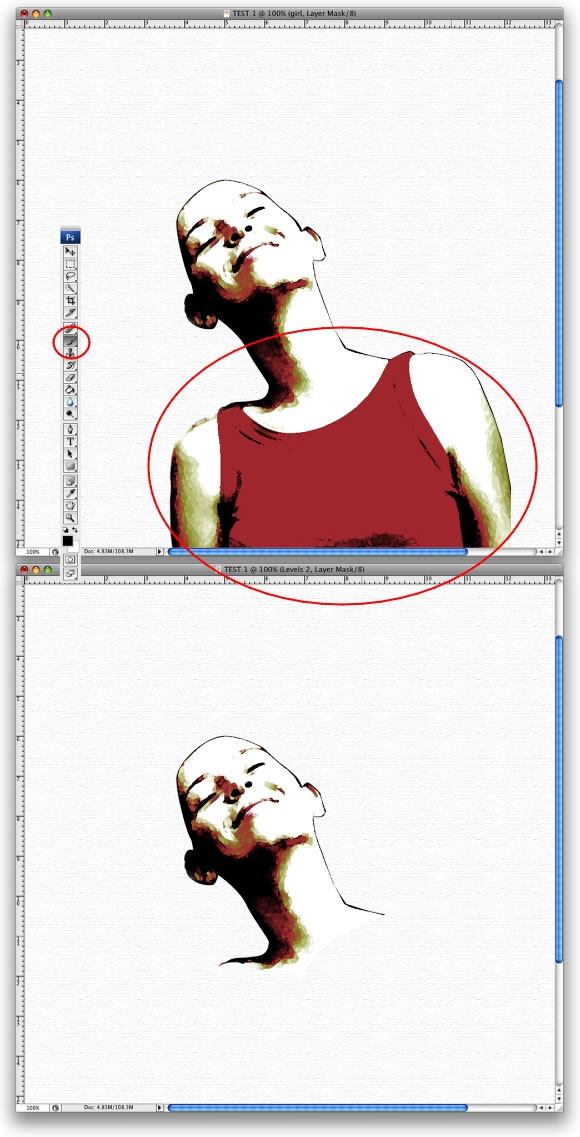
With
the girl’s layer selected, go to Layer>Layer Mask>Reveal All.
Then select the Brush Tool (B), with black for the color, and mask the
body of the girl.
Step 6
We need the Bittbox Watercolor Brushes 2 that you can download at this
link.
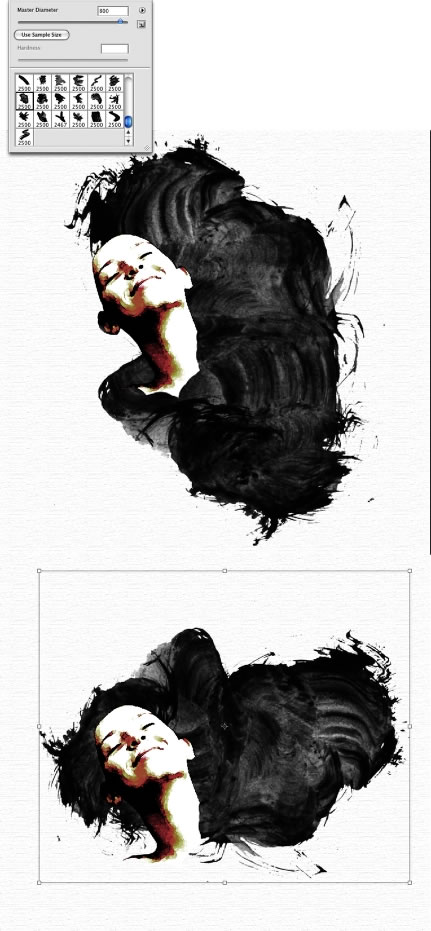
Next
we create a new layer. Then with the Brush Tool (B) selected, choose
the seventh brush from the BB Watercolor Brushes. Use black for the
color. Then reduce its size to fit the document. After that, rotate and
resize the layer. The idea is to create watercolor-style hair for the
girl using the brush.
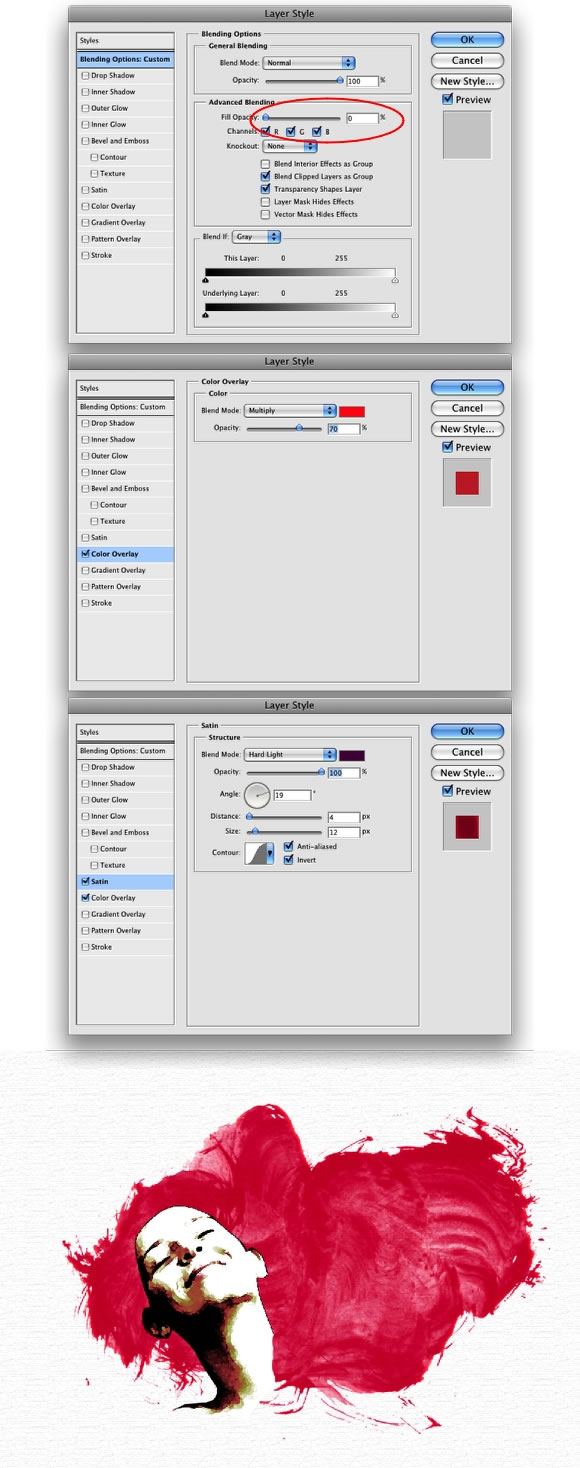
Step 7
Now
go to Layer>Layer Style>Blending Options. Change the Fill Opacity
to 0. Then select the Color Overlay option. Use red for the color and
Multiply for the blend mode. For the Opacity use 70%. Then select the
Satin option. Use Hard Light for the blend mode, purple (#5d085c) for
the color, 20º for the Angle, Distance 4px, and Size 12px.
Step 8
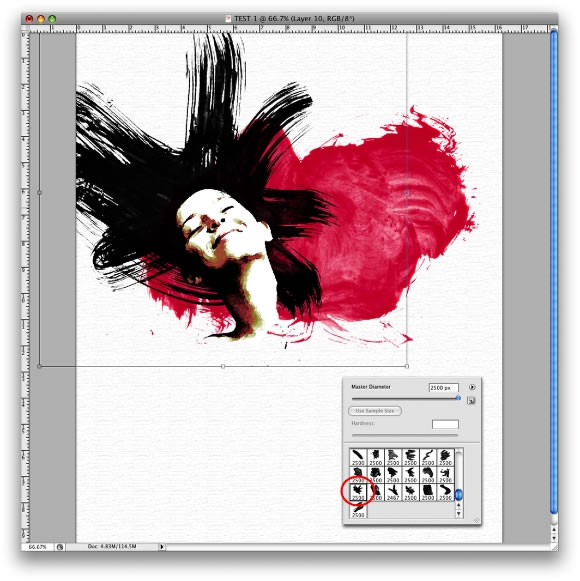
Create
a new layer. Then select another brush with the Brush Tool(B). I used
the 17th Bittbox Brush. The concept we’re using is to design different
creative-looking hairstyles. So let’s continue with that. On a new
layer, paint some brush strokes in the middle of the screen. Then resize
and rotate them until they look good. You should achieve a stylized
hair look, as in the image below.
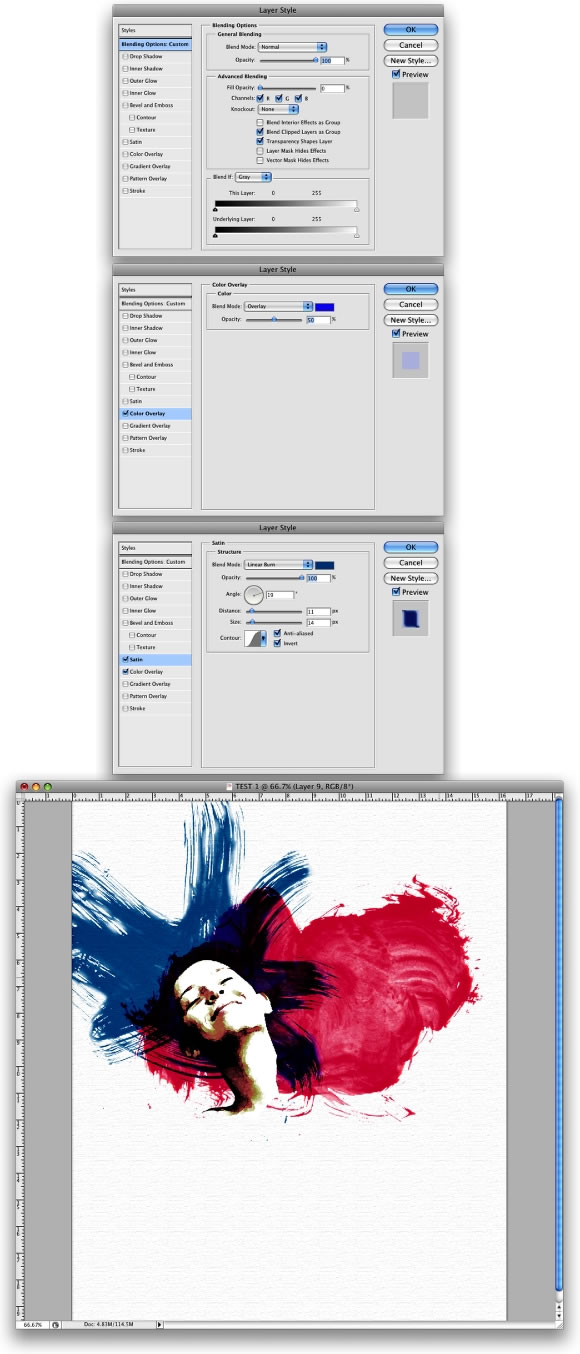
Step 9
Go
to Layer>Layer Style>Blending Options. Set the Fill Options to 0.
Then add a Color Overlay. Use Overlay for the blend mode, Blue
(#002cec) for the color, and set it to 50% Opacity. Then select Satin.
Then use the following settings: a slightly darker blue (#065795) color,
a Linear Burn for the blend mode, a 100% Opacity, a 19º Angle, an 11px
Distance, and a 14px Size.
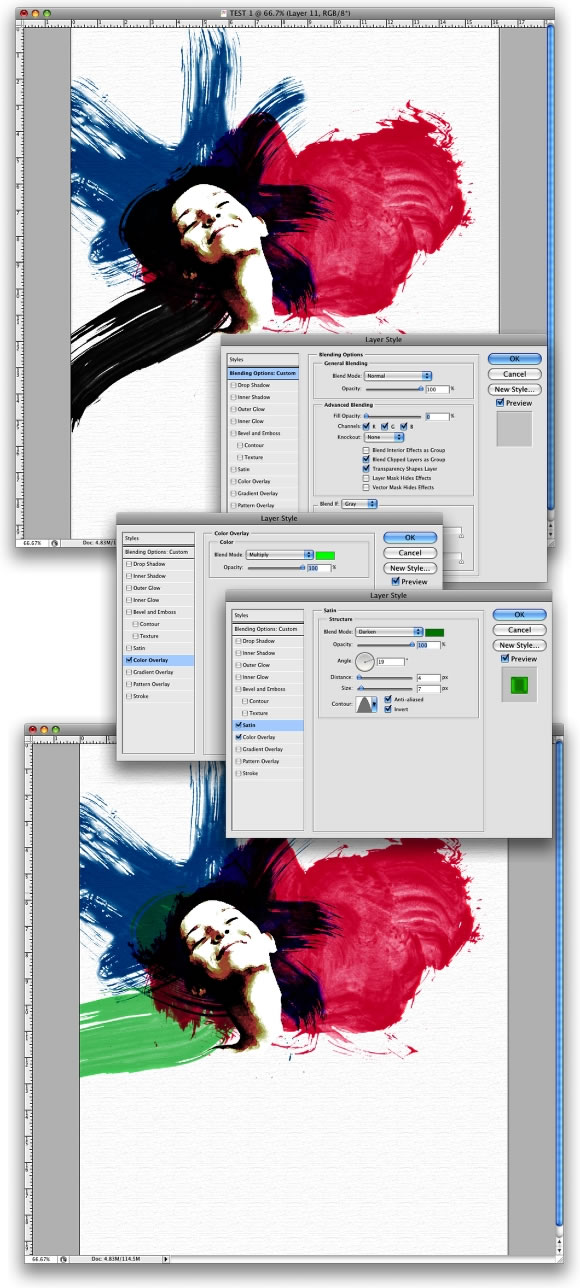
Step 10
Let’s
brush in some more hair. This time we’ll use green. Create a new layer,
and select the Brush Tool(B). Then select another brush from the
watercolor set. Select the last one, reduce its size, and paint more
hair. Use just one click when brushing. After that you can resize and
rotate it.
Now go to Layer>Layer Style>Blending Options.
Again set the Fill Options to 0. Then add a Color Overlay, use Multiply
for the blend mode, Green (#18ff00) for the color, and 100% for the
Opacity. Then select Satin. Use the following settings: darker green
(#0b9600), Darken for the blend mode, 100% Opacity, 19º Angle, 4px
Distance, and 7px Size.
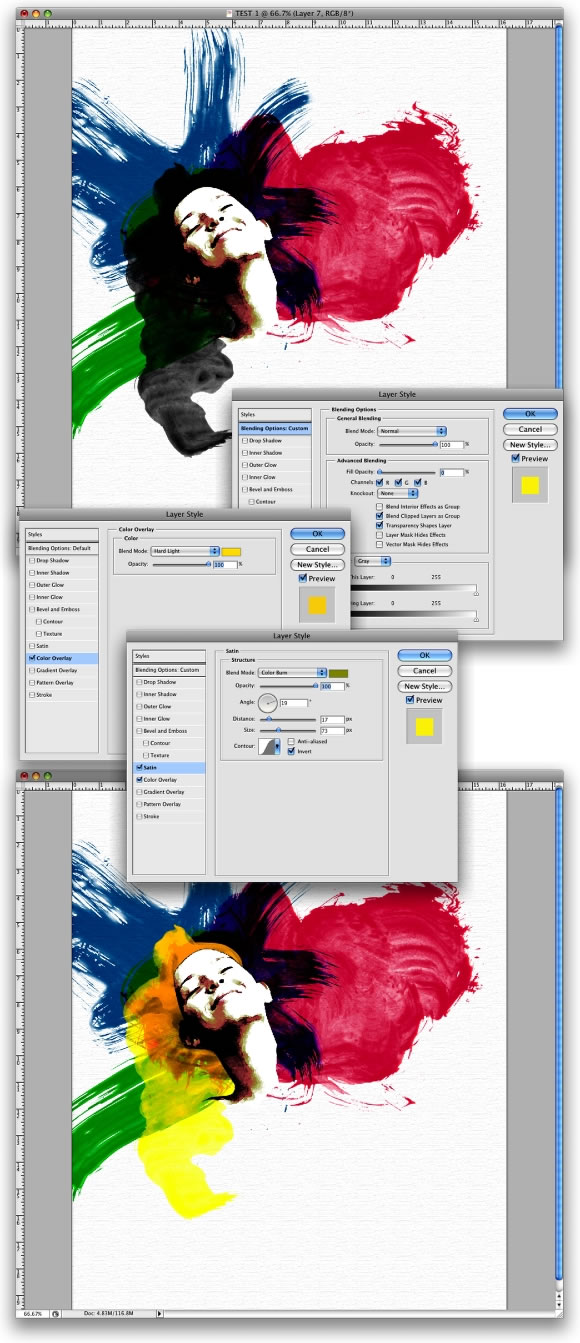
Step 11
Next
we repeat the process one more time. Create a new layer. Then select
the Brush Tool(B). Select another brush, reduce its size, and paint more
hair. Adjust it by resizing and rotating it until it looks good.
Again,
go to Layer>Layer Style>Blending Options. Change the Fill Options
to 0. Then add a Color Overlay, use Hard Light for the blend mode,
yellow (#ffe400) for the color, and 100% for the Opacity. Then select
Satin. Use the following settings: darker yellow (#a2a406), Color Burn
for the blend mode, 100% Opacity, 19º Angle, 17px Distance, and 73px
Size.
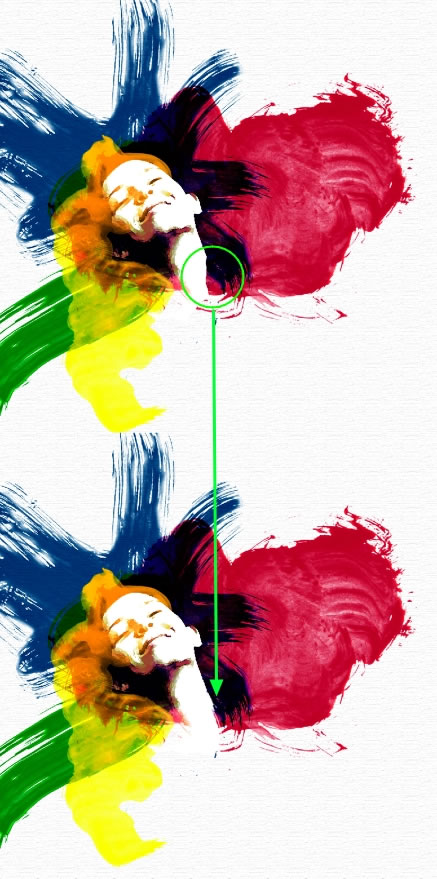
Step 12
Now
select the layer with the girl’s face. Change the blend mode to Screen.
Then make some adjustments, like fixing the neck using a regular brush
with a white color.
Step 13
Type
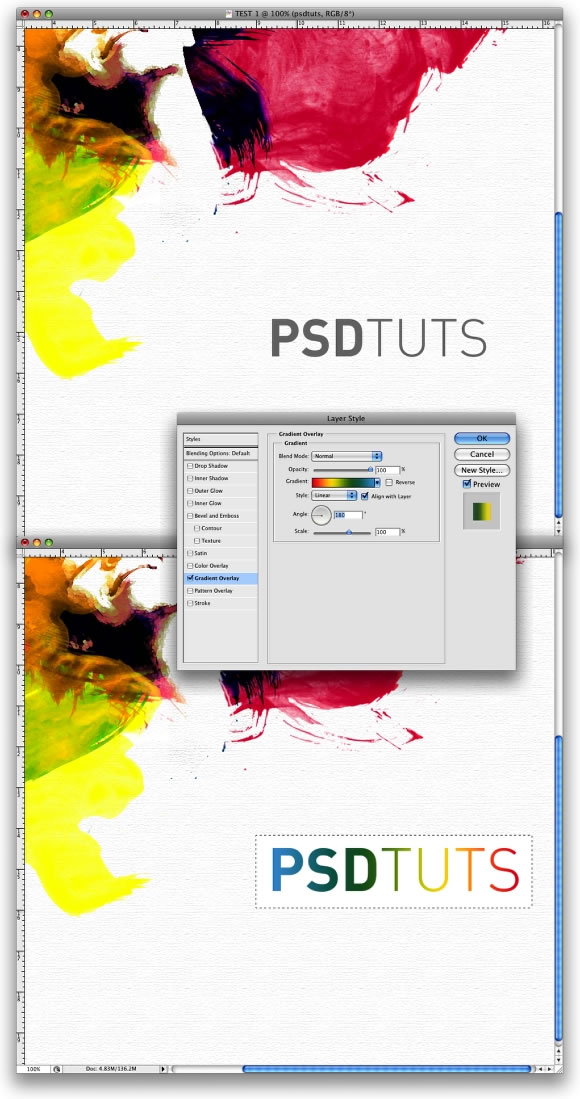
the text you want; I typed Psdtuts+. Then go to Layer>Layer
Style>Gradient Overlay. Create a gradient using Red, Yellow, Green,
and Blue. Use 180º for the angle and Normal for the blend mode.
Create
another layer, and make sure that the text is on top of this new layer.
Then with the Rectangular Marquee Tool, create a rectangle selection
and fill it with white. Next we merge these two layers (the text with
the white rectangle). This is necessary to add some text effects;
otherwise the filters wouldn’t work well.
Step 14
Now
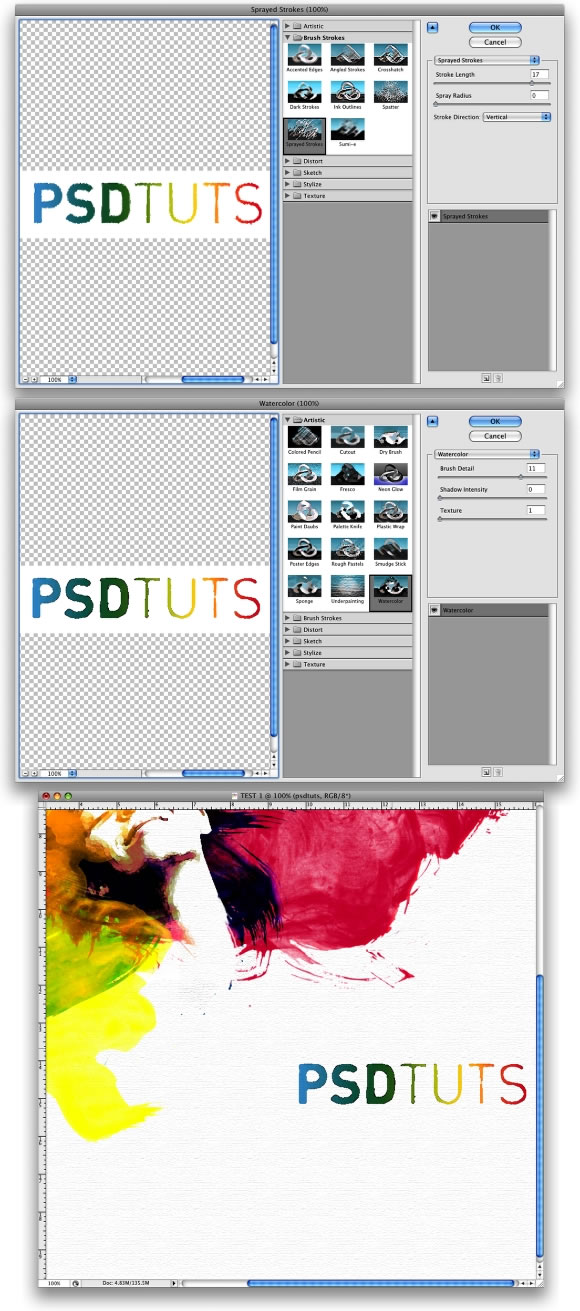
we apply some filters to the text. First go to Filter>Brush
Strokes>Sprayed Strokes. Use Stroke Length 17, Spray Radius 0, and
Stroke Direction Vertical. After that go to
Filter>Artistic>Watercolor. Use the following settings: Brush
Detail 11, Shadow Intensity 0, and texture 1. That will create a nice
text effect, or you could experiment with different filters until you
achieve optimal results.
Conclusion
This
tutorial presents a quick and easy way to create a nice design. We
achieved this by mixing a photo with watercolor effects. We used some
watercolor brushes and played with blend modes. Keep in mind though, if
you can paint it for real, you will be able to create very original
artwork.